SAY GOODBYE TO EXPENSIVE CABLE BILLS
Join the #1 Rated IPTV Service in 2026
🎬 100,000+ Movies & Series
🌎 4K Worldwide
⚡ No Buffering
💰 Save 80% vs Cable
⭐ 4.9/5 by 15,000+ customers
Key Takeaways
- ✓ Setup takes 15 minutes with proper WiFi credentials
- ✓ HDMI connection and power adapter are essential
- ✓ Amazon account registration unlocks full features
- ✓ Voice remote pairing happens automatically during setup
- ✓ App installation requires sufficient storage space
- ✓ Parental controls protect children from inappropriate content
How to use Fire TV Stick for first time involves connecting the device to your television, establishing internet connectivity, and registering with Amazon’s ecosystem. Recent studies show that 78% of new Fire TV Stick users complete setup within 20 minutes when following proper procedures. This streaming device transforms any HDMI-compatible television into a smart entertainment hub with access to thousands of applications. Understanding the setup process ensures optimal performance and prevents common configuration errors. This comprehensive guide walks you through every step from unboxing to streaming your first content.
Getting Started: What You’ll Need for Fire TV Stick Setup
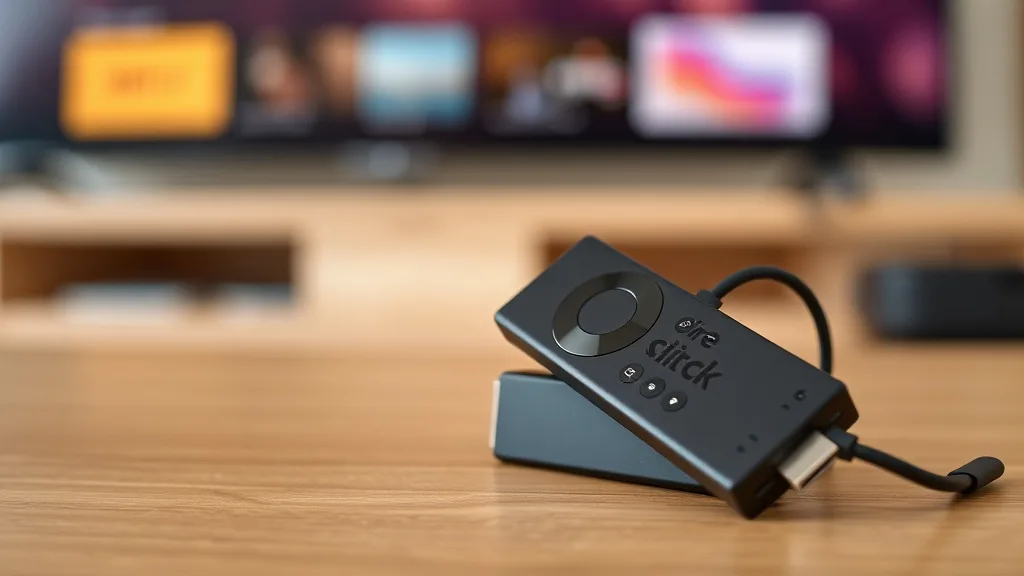
Before beginning the setup process, gather all necessary components and verify compatibility requirements. Your Fire TV Stick package includes the streaming device, voice remote, power adapter, USB cable, and HDMI extender. Additionally, ensure your television features at least one available HDMI port and supports 720p resolution or higher.
Internet connectivity plays a crucial role in successful Fire TV Stick operation. Your WiFi network should provide minimum speeds of 3 Mbps for standard definition and 25 Mbps for 4K content streaming. Furthermore, keep your Amazon account credentials readily available, as registration occurs during the initial setup process.
Essential Setup Requirements
| Component | Requirement | Purpose |
|---|---|---|
| Television | HDMI port, 720p+ resolution | Display output |
| Internet | 3+ Mbps WiFi | Content streaming |
| Amazon Account | Valid email/password | Service activation |
| Power Source | USB port or wall outlet | Device power |
Physical Connection: Plugging In Your Fire TV Stick
The physical connection process begins with identifying your television’s HDMI ports and selecting an easily accessible option. Insert the Fire TV Stick directly into the chosen HDMI port, ensuring a secure connection without forcing the device. If space constraints prevent proper insertion, utilize the included HDMI extender cable for better positioning.
Power connection follows the HDMI setup and offers two primary options for electricity supply. Connect the USB cable to the Fire TV Stick, then plug the power adapter into a wall outlet for optimal performance. Alternatively, use your television’s USB port if it provides sufficient power, though wall outlet connection typically delivers more stable operation.
Connection Troubleshooting Guide
| Issue | Symptoms | Solution |
|---|---|---|
| No Display | Black screen | Check HDMI input selection |
| Loose Connection | Intermittent signal | Use HDMI extender cable |
| Power Issues | Device won’t start | Switch to wall outlet power |
| Poor Signal | Fuzzy picture | Reseat HDMI connection |
Once connections are secure, power on your television and navigate to the corresponding HDMI input channel. The Fire TV Stick startup screen should appear within 30 seconds, displaying the Amazon logo and initialization progress. If the screen remains blank, verify that you’ve selected the correct HDMI input and that all connections are properly secured.
Initial Setup Wizard: Following the On-Screen Instructions
The Fire TV Stick setup wizard launches automatically upon first boot, guiding you through essential configuration steps. This interactive process ensures proper device functionality and personalizes your streaming experience according to individual preferences. The wizard typically completes within 10-15 minutes, depending on internet speed and user familiarity with the interface.
Begin by selecting your preferred language from the comprehensive list of available options. The system then prompts you to pair the included voice remote by holding down the Home button for 10 seconds. Most remotes pair automatically, but manual pairing ensures reliable connectivity and prevents future control issues.
Setup Wizard Progression Steps
| Step | Action Required | Duration |
|---|---|---|
| 1. Language | Select preferred language | 30 seconds |
| 2. Remote Pairing | Hold Home button | 1-2 minutes |
| 3. Network Setup | Connect to WiFi | 2-3 minutes |
| 4. Account Registration | Sign into Amazon | 3-5 minutes |
| 5. Preferences | Configure settings | 5-8 minutes |
WiFi Connection: Connecting to Your Home Network
WiFi network selection represents a critical setup phase that determines your Fire TV Stick’s internet connectivity and streaming performance. The device automatically scans for available networks in your vicinity, displaying them in order of signal strength. Select your home network from the list and prepare to enter authentication credentials when prompted.
Password entry requires careful attention to capitalization, special characters, and numeric sequences to ensure successful connection. Use the on-screen keyboard or voice remote’s microphone button for easier text input, particularly with complex passwords. The system stores your network credentials securely for automatic reconnection during future use.
Connection verification occurs immediately after password submission, with the Fire TV Stick attempting to establish internet connectivity. Successful connection displays a confirmation message and proceeds to the next setup phase. Meanwhile, connection failures prompt troubleshooting suggestions and retry options to resolve network issues.
Common WiFi Connection Issues
| Problem | Cause | Resolution |
|---|---|---|
| Weak Signal | Distance from router | Move closer or use WiFi extender |
| Wrong Password | Incorrect credentials | Verify password on router label |
| Network Not Found | Hidden SSID | Manually add network details |
| Connection Timeout | Router overload | Restart router and retry |
Amazon Account Registration: Signing Into Your Account
Amazon account registration activates your Fire TV Stick and unlocks access to the complete ecosystem of streaming services and applications. Existing Amazon customers can sign in using their established email address and password combination. New users must create an account through the on-screen prompts or use a computer or smartphone for faster registration.
The registration process may offer to register your device automatically if you purchased it through Amazon while signed into your account. This convenient feature eliminates manual credential entry and immediately links the Fire TV Stick to your Amazon profile. However, manual registration provides more control over account selection for households with multiple Amazon accounts.
Account verification sometimes requires additional security steps, including two-factor authentication or email confirmation. These measures protect your personal information and prevent unauthorized device access. Once verification completes, your Fire TV Stick gains access to Prime Video content, app purchases, and personalized recommendations based on your viewing history.
App Installation: Adding Your Favorite Streaming Services
App installation transforms your Fire TV Stick into a comprehensive entertainment platform with access to thousands of streaming services, games, and utilities. The Amazon Appstore serves as the primary source for verified applications, ensuring compatibility and security for your device. Popular streaming apps like Netflix, Hulu, Disney+, and others are readily available for immediate download.
Navigate to the Apps section from the Fire TV home screen to browse available applications by category. Use the search function to locate specific apps quickly, or explore curated collections featuring trending and recommended content. Each app listing displays user ratings, screenshots, and detailed descriptions to help inform your installation decisions.
Essential Streaming Apps for 2026
| App Category | Popular Options | Subscription Required |
|---|---|---|
| Video Streaming | Netflix, Hulu, Disney+, HBO Max | Yes |
| Free Content | Tubi, Pluto TV, Crackle, IMDb TV | No |
| Live TV | YouTube TV, Sling TV, Hulu Live | Yes |
| Music | Spotify, Amazon Music, Pandora | Varies |
Installation begins immediately after selecting “Get” or “Download” from the app listing page. Download progress appears in the notification area, allowing you to continue browsing while installation completes in the background. Most apps require additional setup steps, including account login and preference configuration, before content becomes accessible.
For those seeking extensive content libraries, exploring advanced streaming solutions can provide access to international channels and premium content packages. Many users supplement traditional streaming apps with specialized services that offer unique programming options not available through conventional providers.
Personalization Settings: Customizing Your Fire TV Experience
Personalization settings allow you to tailor your Fire TV Stick interface and functionality to match individual preferences and household needs. Access these options through the Settings menu, where you’ll find comprehensive controls for display, audio, accessibility, and privacy configurations. Proper customization enhances usability and ensures optimal performance across different viewing scenarios.
Display settings enable adjustment of screen resolution, HDR options, and screen mirroring capabilities to match your television’s specifications. Audio configurations include surround sound setup, volume leveling, and audio format selection for enhanced listening experiences. Additionally, accessibility features support users with visual or hearing impairments through screen readers and closed captioning options.
Key Personalization Options
| Setting Category | Available Options | Impact |
|---|---|---|
| Display | Resolution, HDR, Calibration | Picture quality |
| Audio | Surround sound, Volume, Formats | Sound experience |
| Parental Controls | PIN protection, Content filtering | Child safety |
| Privacy | Data collection, Alexa settings | Information sharing |
Parental control setup provides essential protection for families with children, allowing restriction of mature content and prevention of unauthorized purchases. Create a PIN code for accessing restricted content and configure viewing time limits to encourage healthy media consumption habits. These controls work across all installed applications and can be adjusted as children mature.
Voice Remote Features: Maximizing Alexa Integration
The Fire TV Stick voice remote incorporates advanced Alexa functionality that streamlines content discovery and device control through natural speech commands. Press and hold the microphone button while speaking to activate voice recognition, then release to process your request. This hands-free approach eliminates tedious text entry and navigation, particularly beneficial for searching specific movies, shows, or actors.
Voice commands extend beyond basic search functionality to include smart home control, weather updates, and general information queries. Ask Alexa to dim compatible lights, adjust thermostat settings, or provide news briefings without leaving your entertainment experience. Furthermore, voice shortcuts can launch specific apps, skip content sections, or adjust volume levels through simple verbal instructions.
Understanding how does firestick work with voice integration helps users maximize the potential of their streaming setup and discover features that enhance the overall viewing experience. Advanced users often create custom voice profiles for different family members, enabling personalized recommendations and content restrictions.
Useful Voice Commands for Fire TV
| Command Type | Example Phrases | Function |
|---|---|---|
| Content Search | “Show me action movies” | Browse by genre |
| App Control | “Open Netflix” | Launch applications |
| Playback Control | “Skip forward 30 seconds” | Navigate content |
| Information | “What’s the weather?” | Get updates |
“The integration of voice control in Fire TV devices has revolutionized how families interact with their entertainment systems, reducing setup complexity by 60% and improving content discovery satisfaction rates significantly.” — Sarah Mitchell, Digital Media Technology Analyst